How to format a resume in Microsoft Word (step-by-step guide + 7 free templates)
cta

How to format a resume in Microsoft Word (step-by-step guide + 7 free templates)

Resume builders, AI tools, and drag-and-drop editors have made it easier than ever to create a polished document in minutes. Yet most hiring pipelines still revolve around a simple text file. ATS systems parse it, recruiters annotate it, hiring managers open it on whatever device they have... Before any of that happens, someone has to actually format it, and getting that part wrong quietly kills applications that deserve better.

Last update:
30/4/2026

Best Resume Examples in This Guide

No items found.
Resume 1
Resume 1
Resume 2
Resume 3
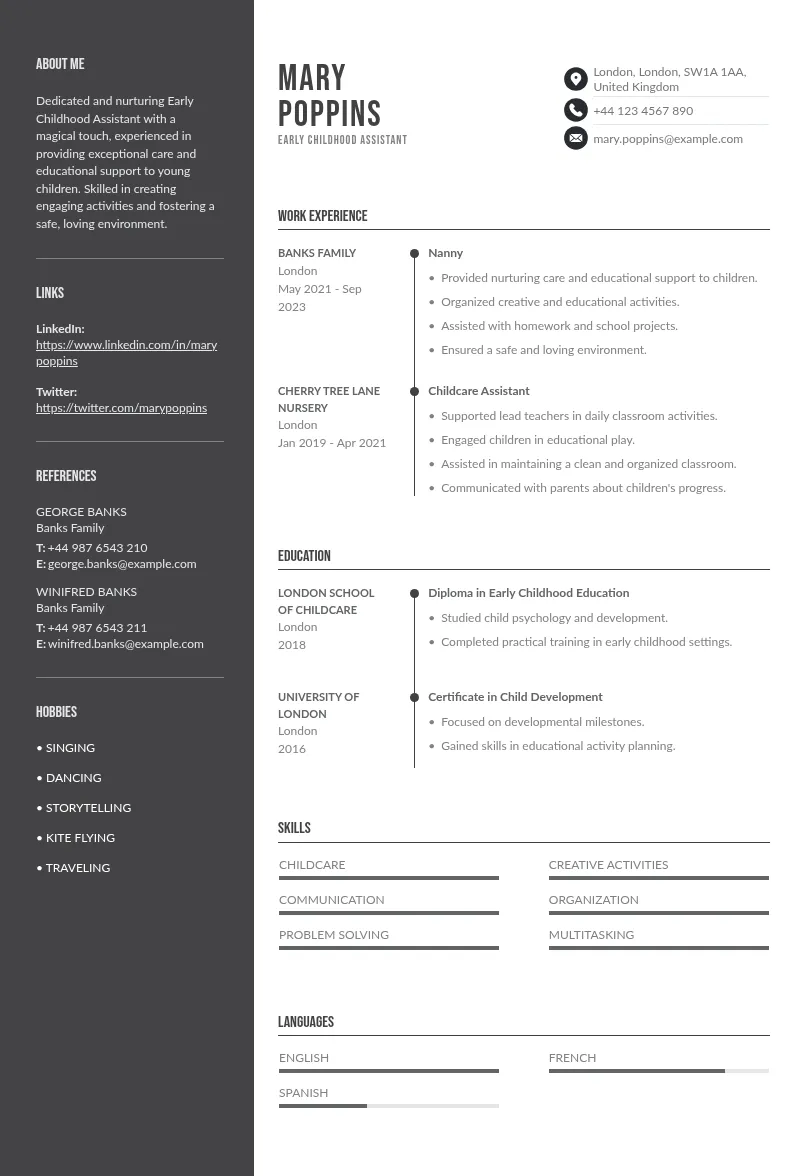
two column format-resume-in-word resume example
Budapest
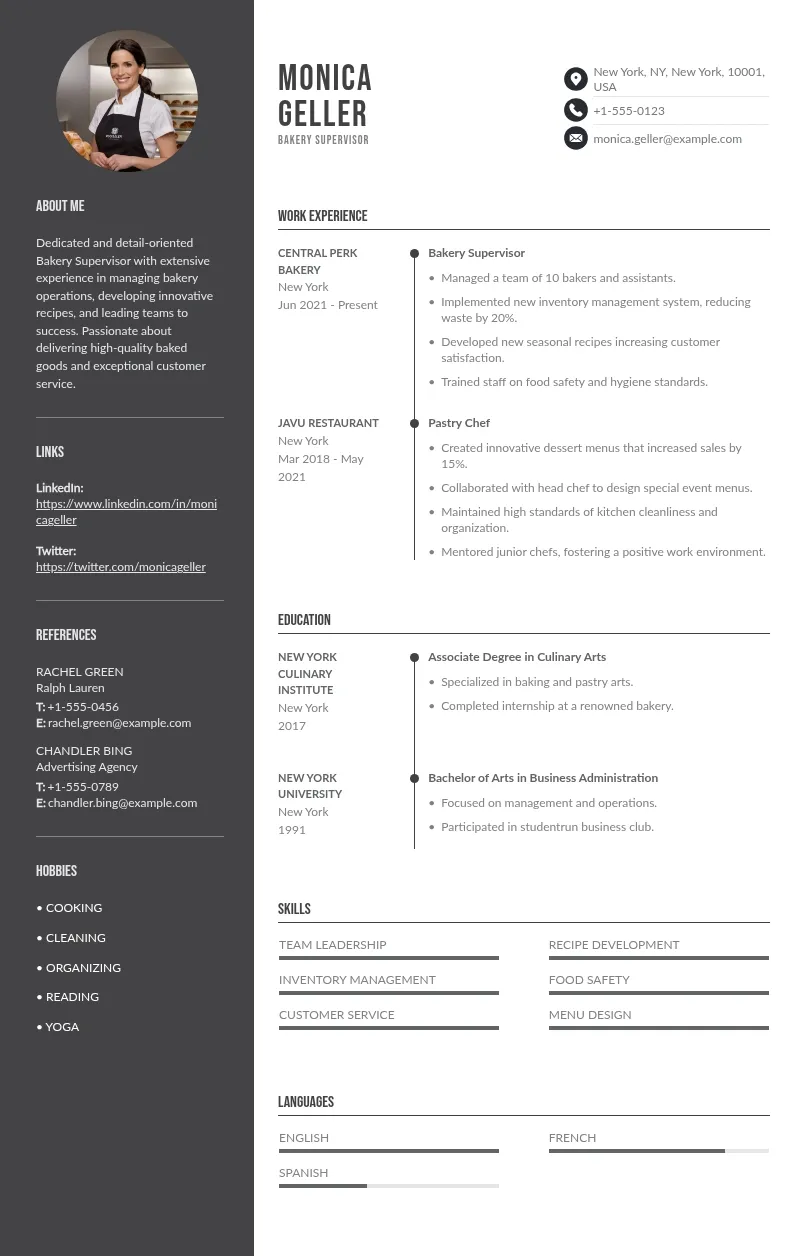
professional Format  in word resume template
Perth
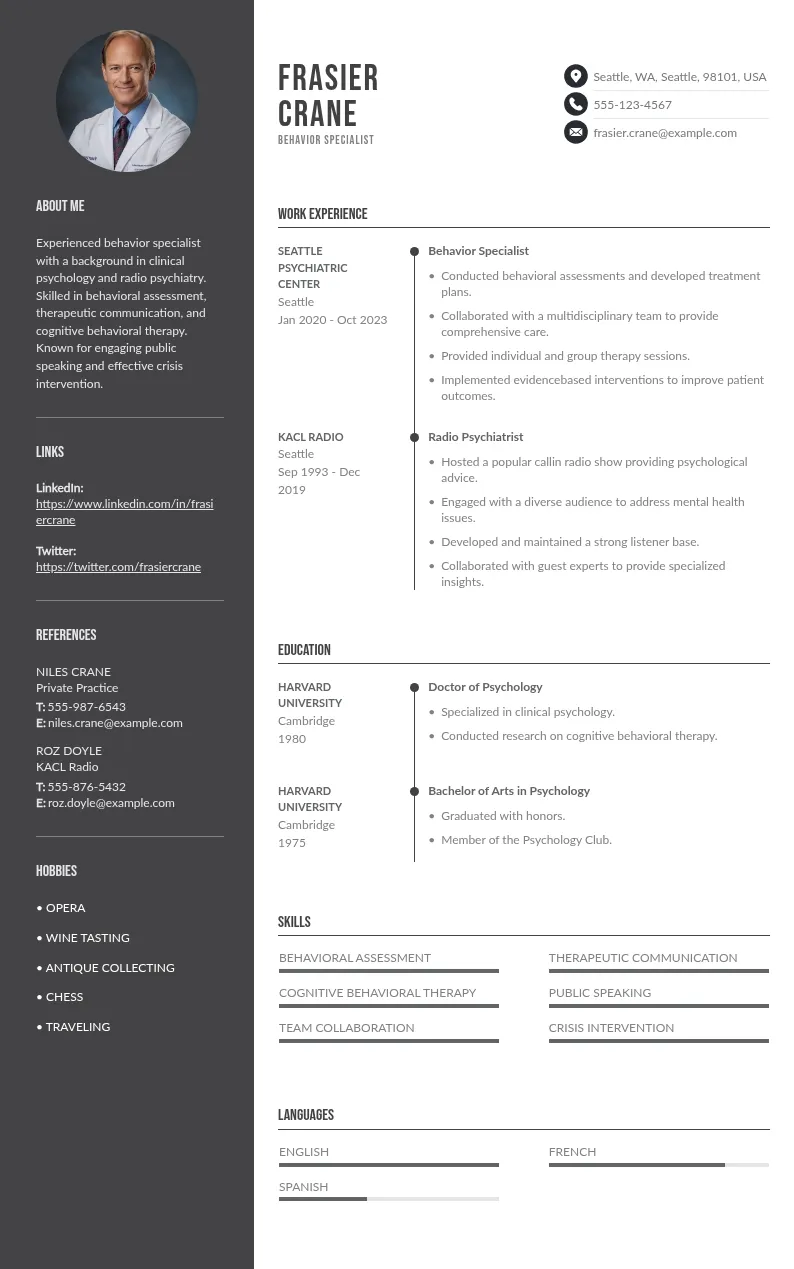
modern Format  in word resume template
Rotterdam
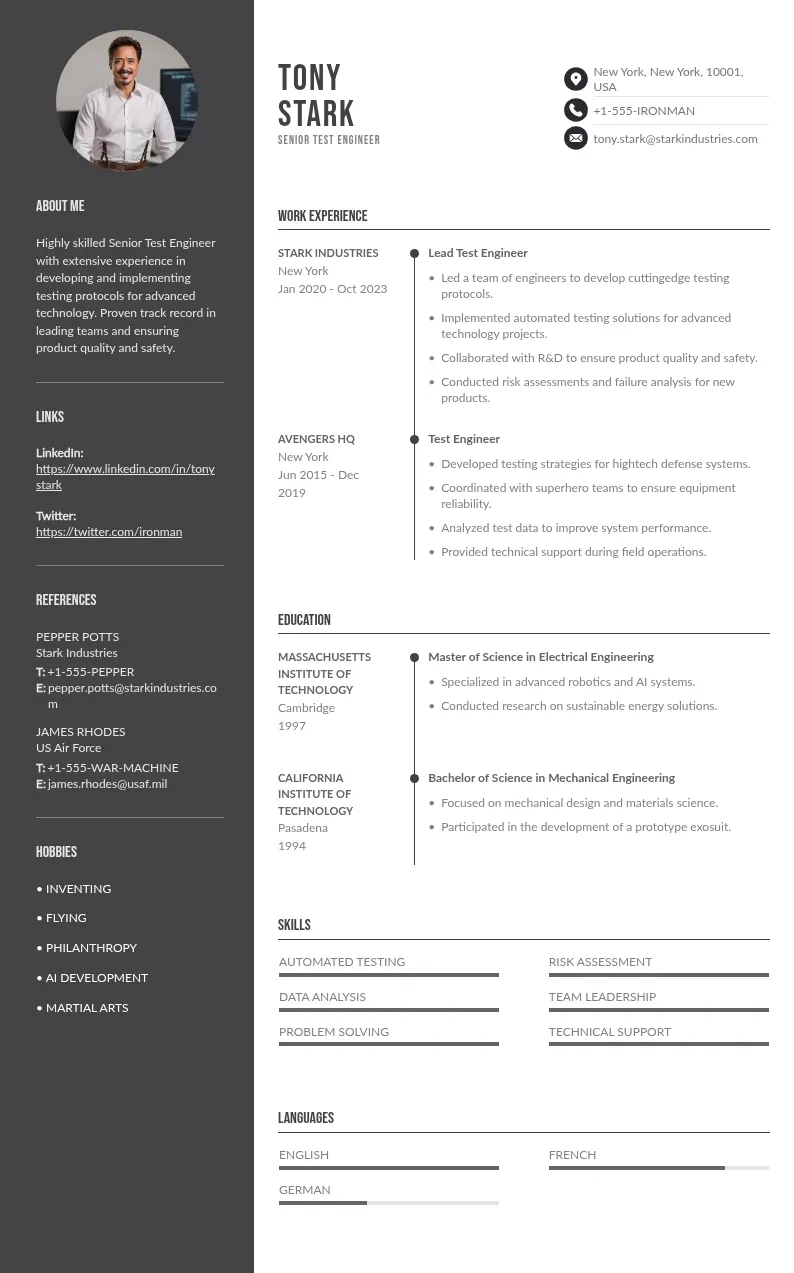
simple Format  in word resume example
Chicago

Resume Guide
Content Score
of your resume
Get My Resume Score

Microsoft Word has approximately 750 million monthly active users worldwide, making it the default tool most job seekers reach for when building a resume from scratch (source: EarthWeb, 2025). That ubiquity comes with a hidden risk: a poorly structured Word file can fail ATS parsing and human review at a measurably higher rate than a clean, plain one. 

According to an EDLIGO analysis of 1,000 rejected resumes across Workday, Taleo, and Greenhouse, plain .docx files carry just a 4% parsing failure rate, compared to 18% for PDF in certain systems (source: coversentry.com/ats-statistics). The format is not the problem… the formatting both for human eyes and ATS is.

This guide covers the exact steps to set up a Word resume that passes ATS systems and reads clearly to human reviewers. See also: how to create an ATS-compatible CV.
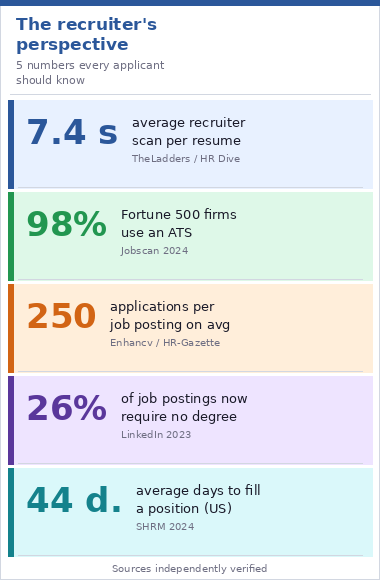
The recruiter’s perspective: 5 numbers every applicant should know. Sources: TheLadders/HR Dive, Jobscan 2024, Enhancv/HR-Gazette, LinkedIn 2023, SHRM 2024.

How to format a resume in Word: step by step


The six steps below cover everything that actually affects how your resume parses and reads. Each one is actionable.

Step 1: Set the right page margins

Use 1-inch (2.54 cm) margins on all sides. This is the standard recruiters and ATS systems expect. You can go as low as 0.75 inches if you need more space, but never below that. Tighter margins cause content to render outside the parseable area in some systems.

→  To set margins in Word:

Layout › Margins › Normal (1")


→ For custom values:

Layout › Margins › Custom Margins


Step 2: Choose an ATS-safe font and size


Not all fonts carry over reliably from your screen to an ATS parser—or to a recruiter’s screen. Decorative fonts, in particular, may appear as empty boxes or be misinterpreted. Stick to these three:

  • Calibri (Word's default, clean, modern, widely supported)
  • Arial (neutral, excellent ATS compatibility)
  • Times New Roman (traditional, universally readable)

Use 10-12pt for body text and 14-16pt for your name. Anything below 10pt risks being flagged as non-compliant by some parsing systems.

Source on ATS font parsing: MIT CAPD – Make your resume ATS-friendly.

Step 3: Use Word's built-in heading styles, not manual formatting


This is the step most people skip, and it is the one that matters most for document consistency. Making a line bold and large is not the same as applying a heading style. Word's built-in styles create a structured document hierarchy that ATS systems and screen readers can navigate correctly.

Select your section title text in the Styles panel, then apply:

→  Open styles in Word:

Home › Styles panel › Heading 2


If the default heading style does not match your design preferences, modify it rather than overriding it manually:

→  To modify a heading style:

Right-click style › Modify › Format › Paragraph


Step 4: Structure your sections in the right order

Section order should match your career stage, not a generic template. Here are the two most effective structures:

  • For entry-level candidates: Contact > Summary > Education > Skills > Experience > Projects
  • For experienced professionals: Contact > Summary > Experience > Skills > Education

To ensure your contact details are both ATS-readable and easy for recruiters to spot, keep them in plain body text at the top of the document… never in a Word header or footer. 

According to EDLIGO's 2025 analysis (source: coversentry.com/ats-statistics), up to 25% of ATS systems skip header and footer content entirely, meaning your phone number and email could be invisible to the parser.

Step 5: Five formatting elements that break ATS parsing

These elements are common in visually designed templates, but problematic for machine readability. If you intend to build a ATS-friendly resume, remove all of them before submitting:

  1. Tables: content gets scrambled when parsed row by row instead of left to right
  2. Text boxes: treated as floating objects; their content is often invisible to parsers
  3. Multiple columns: two-column layouts reduce parsing accuracy from 93% to 86% per EDLIGO 2025
  4. Icons and images: decorative icons near section titles confuse section identification algorithms
  5. Headers and footers: contact info placed there disappears in up to 25% of ATS systems (EDLIGO 2025)

Source: coversentry.com/ats-statistics.

Step 6: When to save as .docx and when to export as PDF

The default answer is .docx. Here is the decision rule:

  • Use .docx: when uploading to a job portal, corporate ATS, or government site, or when a staffing agency requests it (they often need to edit it before forwarding)
  • Use PDF: when emailing directly to a recruiter or hiring manager, or when the job posting explicitly requests it
  • When unsure: default to .docx. It carries just 4% parsing failure vs 18% for PDF in legacy systems

→  Export to PDF in Word:

File › Save As › PDF (.pdf)


→  Alternative route:

File › Export › Create PDF/XPS


Always open the exported PDF to verify nothing shifted before submitting.

Source: Jobscan – PDF vs Word.


7 free Word resume templates by career level


The seven templates below were selected because they each solve a different formatting challenge specific to a career stage. Every template follows the ATS-safe structure outlined above: standard fonts, no tables or text boxes, Word heading styles applied... Each is available as a free .docx download from our Word CV templates library.

1. Free entry-level Word resume template - for graduates and first jobs

The entry-level resume has one job: prove readiness without a work history to back it up. This template leads with education and skills, then supports them with internship work, academic projects, and transferable competencies. Layout: clean hierarchy, no visual clutter…
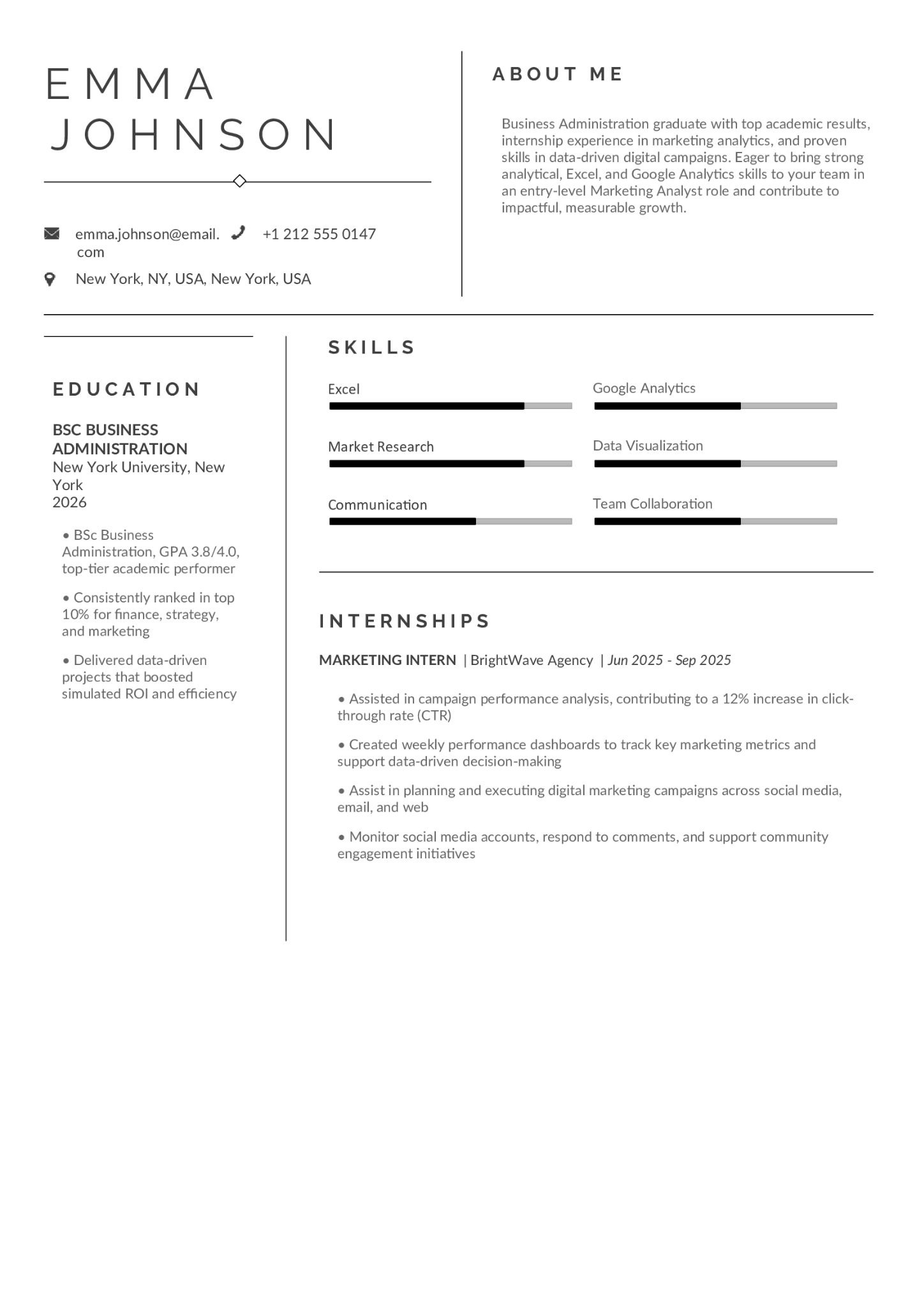
Free entry-level Word resume template - for graduates and first jobs

Key sections to prioritize: Education, Skills, Projects, Internships.

2. Free mid-level Word resume template - for 3 to 10 years of experience

At 3 to 10 years in, the format shifts: less emphasis on education, more on measurable outcomes. Generic bullet points do not survive recruiter scrutiny at this level. This template is built around reverse-chronological experience sections with dedicated space for quantified achievements and a tight two-to-three line summary.
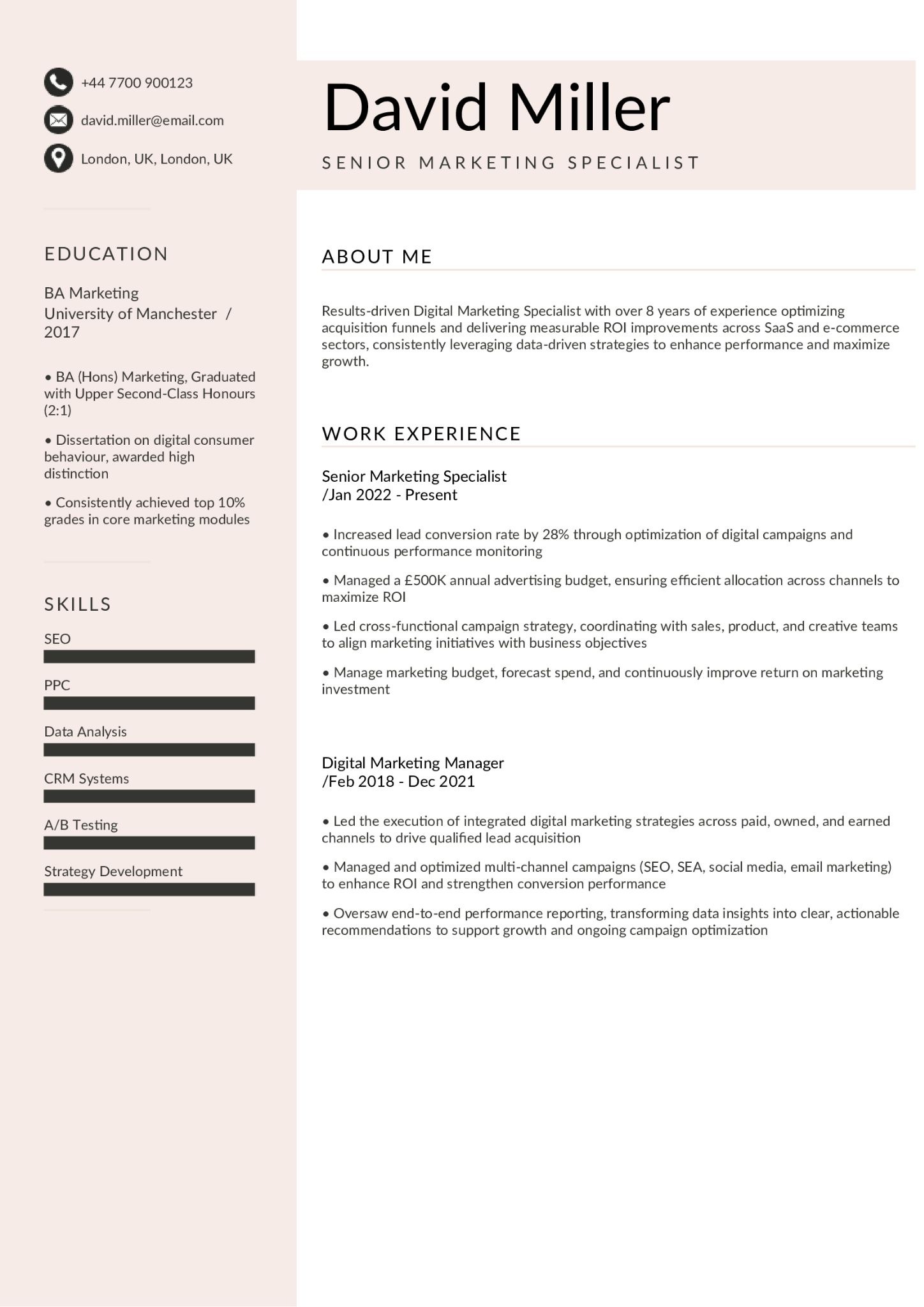
Free mid-level Word resume template - for 3 to 10 years of experience

Key sections to prioritize: Summary, Experience (results-focused), Skills.

3. Free creative Word resume template - balanced design for ATS and humans

Creative candidates face a formatting trap: letting the design do the talking when their achievements should. This template uses one accent color and a subtle visual element to signal personality, while keeping the structure ATS-readable. The resume's job is to get you to the portfolio review, not to replace it.
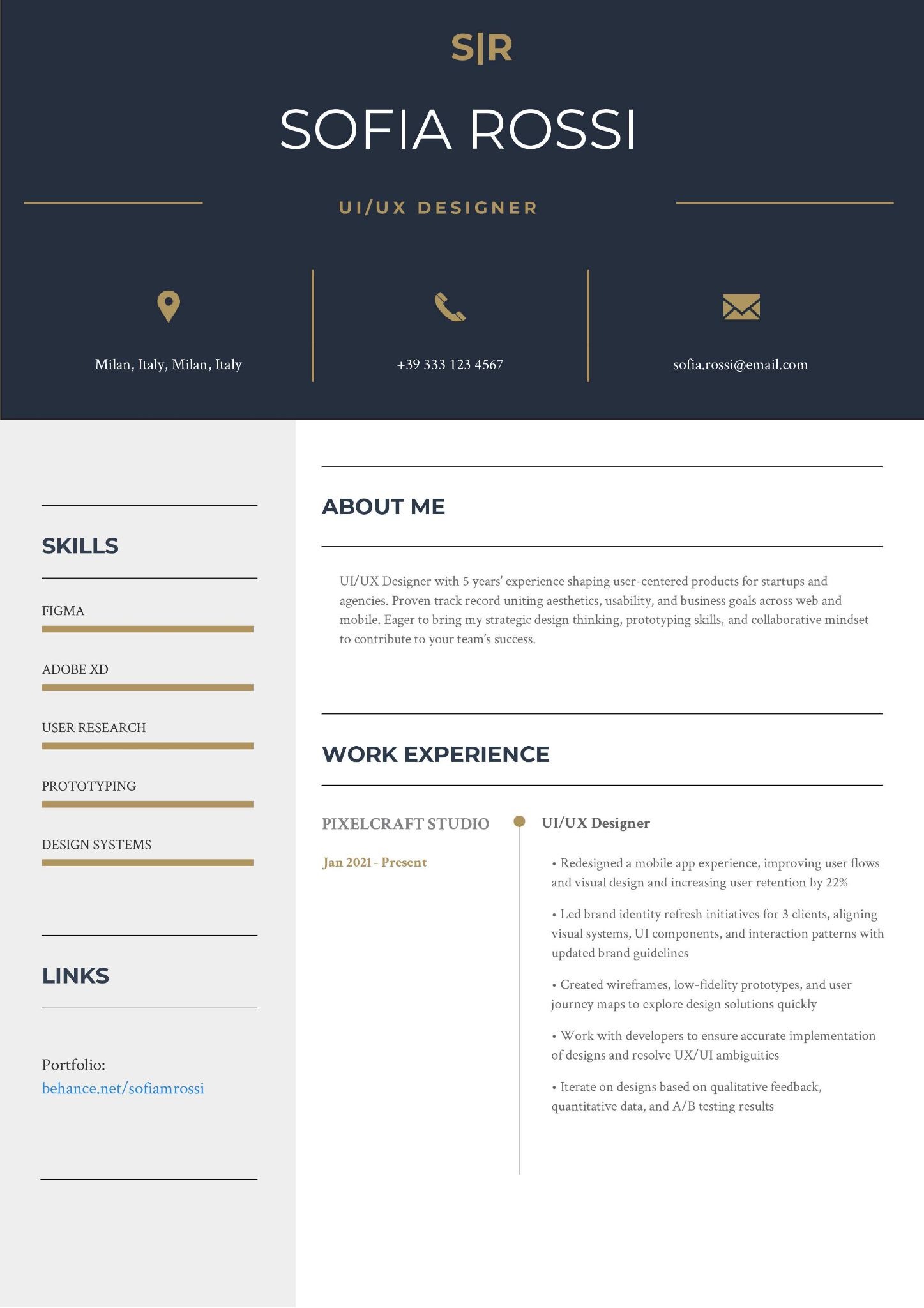
Free creative Word resume template - balanced design for ATS and humans

4. Free minimal ATS Word resume template - single-column, plain .docx

A claim that still circulates widely: "75% of resumes are automatically rejected by ATS." This has been professionally debunked. It traces back to a 2012 sales pitch by Preptel, a now-defunct company, with no published methodology. What ATS actually does is rank, not reject. A poorly formatted resume gets ranked lower because the parser misreads it.
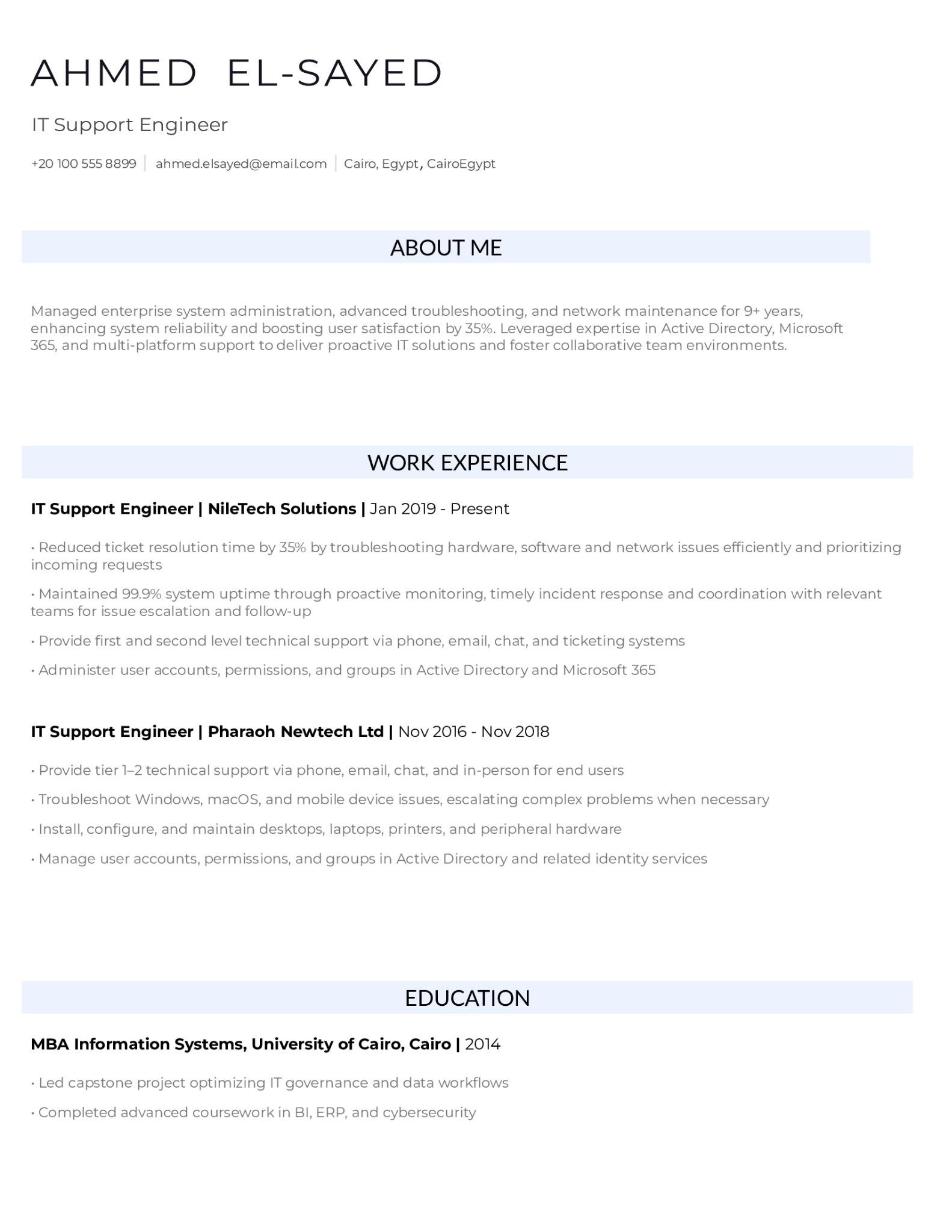
Free minimal ATS Word resume template - single-column, plain .docx

This template eliminates all parsing risk: single column, no graphic elements, standard fonts, standard section headings. The cleanest possible signal to any ATS.

5. Free management Word resume template - built around leadership impact

Leadership resumes fail for one of two reasons: they list responsibilities instead of outcomes, or they bury scope of impact in generic language. This template front-loads team size, budget managed, and measurable operational results. Scope of leadership must be immediately legible to any recruiter.

Free management Word resume template - built around leadership impact

Key sections to prioritize: Summary (scope + impact), Experience (quantified), Key Achievements.

6. Free technical IT Word resume template – for tech and engineering roles

Technical resumes have a skills section problem nobody talks about. An EDLIGO analysis of 1,000 rejected resumes (source: coversentry.com/ats-statistics) found that candidates listing 20+ standalone skills face a 67% rejection rate, vs. 34% when skills are integrated into experience descriptions. Context beats laundry lists.
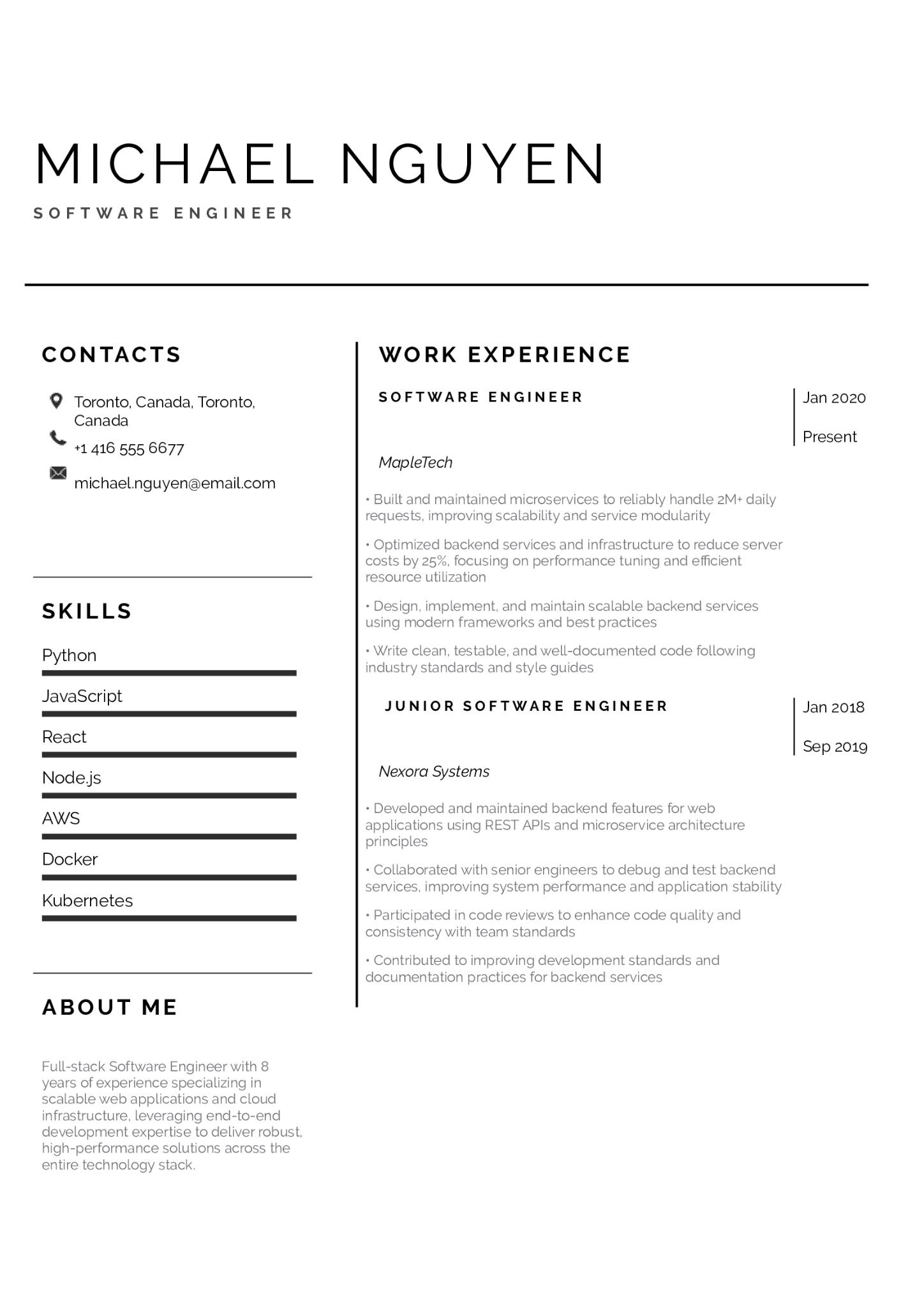
Free technical IT Word resume template – for tech and engineering roles

This template places skills both in a scannable header block and woven into project and role descriptions. Certifications are formatted with full name, issuing body, and year.


7. Free career-change Word resume template – hybrid format for transitions

A purely functional resume (skills-first, chronology buried) is often recommended for career changers, but recruiters are wise to it. A Harvard Business School study on hidden workers confirms that employment gaps and non-linear career paths still carry a measurable hiring penalty.

Free career-change Word resume template – hybrid format for transitions

This template uses a hybrid format: a strong competency summary at the top frames your new direction, followed by a conventional reverse-chronological experience section. The story is told on your terms, without raising the red flags a functional-only format tends to trigger.
Best Word Resume

How to customize a Word template without breaking the format


The most common formatting errors happen during customization, not during initial setup. Here is how to edit a Word template without breaking its structure:

  • Replace placeholder text only: click into a placeholder and type directly. Never delete a heading and retype it in plain text; that removes the style.
  • Avoid manual line breaks: use paragraph spacing instead. Manual breaks (Shift+Enter) create parsing noise:

→  Set paragraph spacing:

Right-click paragraph › Paragraph › Spacing


  • Keep section names standard: "Work Experience", "Education", "Skills". Non-standard headings like "My Journey" are invisible to some parsers.
  • Test before sending: export to PDF and open it. If text shifts, overlaps, or disappears, fix the .docx source before submitting.
  • Name your file professionally: Firstname_Lastname_Resume.docx. Generic names like "resume_final_v3.docx" make you look disorganized.
  • Remove personal metadata: use Word’s document inspector before sending:

→  Remove metadata:

File › Info › Inspect Document


What actually gets you callbacks: key findings from hiring research. Sources: CareerBuilder (2,201 hiring managers), Jobscan, SHRM 2023, LinkedIn.

Checklist: five things to verify before you submit your Word resume


This checklist draws on ATS vendor documentation (Jobscan, HiringThing) and recruiter guidelines published by major hiring platforms. Run through all five before hitting send:

  • Layout matches your career level: entry-level leads with education and skills; experienced professionals lead with experience and outcomes
  • No tables, text boxes, columns, or icons: single-column plain structure only
  • Word heading styles applied consistently: not manual bold text formatting
  • Saved as .docx: unless the posting explicitly requests PDF
  • Placeholder text removed, metadata cleaned, file named correctly (Firstname_Lastname_Resume.docx)

Sources cited in this guide


All claims in this article are attributed to a named source. Where a stat comes from a single study, that scope is stated explicitly.

Frequently asked questions

What is the best way to format a resume in Word?

Start with 1-inch margins, choose Calibri or Arial at 11pt, apply Word's built-in heading styles to all section titles, keep the layout single-column, and avoid tables, text boxes, and graphic elements. Save as .docx by default. This combination gives you the lowest ATS parsing failure rate and the cleanest reading experience for human reviewers.

Should I submit my resume as .docx or PDF?

Default to .docx for online portals and ATS-driven applications. According to EDLIGO's 2025 analysis of 1,000 rejected resumes (source), plain .docx files carry a 4% parsing failure rate vs. 18% for PDF in certain legacy systems. Use PDF when emailing directly to a recruiter or when the job posting explicitly requests it. When in doubt, keep both versions ready. Additional guidance: Jobscan – PDF vs Word.

Do ATS systems really reject 75% of resumes?

No. This widely repeated claim has been traced back to a 2012 sales pitch by Preptel, a now-defunct company, with no methodology ever published. As HiringThing and multiple ATS vendors confirm, ATS systems organize and rank applications — they do not automatically reject them. The real risk is being ranked lower because of poor formatting or keyword mismatch, not binary rejection. A well-formatted .docx with relevant keywords reaches human eyes.

How do I fix spacing issues in a Word resume template?

Spacing problems usually come from manual spacing (blank lines, Shift+Enter breaks). To fix:

→ Remove all paragraph spacing:

Select all (Ctrl+A) › Home › Line Spacing › Remove Space After

→ Adjust per heading style:

Right-click style › Modify › Format › Paragraph

Never use blank lines as spacing — they create invisible formatting artifacts.

What margins should a resume have in Word?

Use 1 inch (2.54 cm) as the standard. You can reduce to 0.75 inches if you need more content space, but never go below 0.5 inches. Content below that threshold falls outside the printable area in some systems and looks unprofessional when printed. Set via Layout > Margins > Normal for the 1-inch default.

Is a Word resume better than a resume builder?

It depends on how you will submit the application. Word gives you full control over formatting and produces a .docx file that most ATS systems parse reliably. Resume builders often export to PDF, which may carry a higher parsing failure rate in legacy systems. If the job posting specifies a file format, always follow it. If it does not, .docx from Word is the safer default. See: ATS resume format guide.

Create your resume with the best templates

Resume Guide
Use this example
Content Score
of your resume
Get My Resume Score

Create your resume in 15 minutes

Our collection of expertly designed cover letter templates will help you stand out from the crowd and get one step closer to your dream job.

Create my resume